Moving a PowerPoint deck to a new template without redoing it
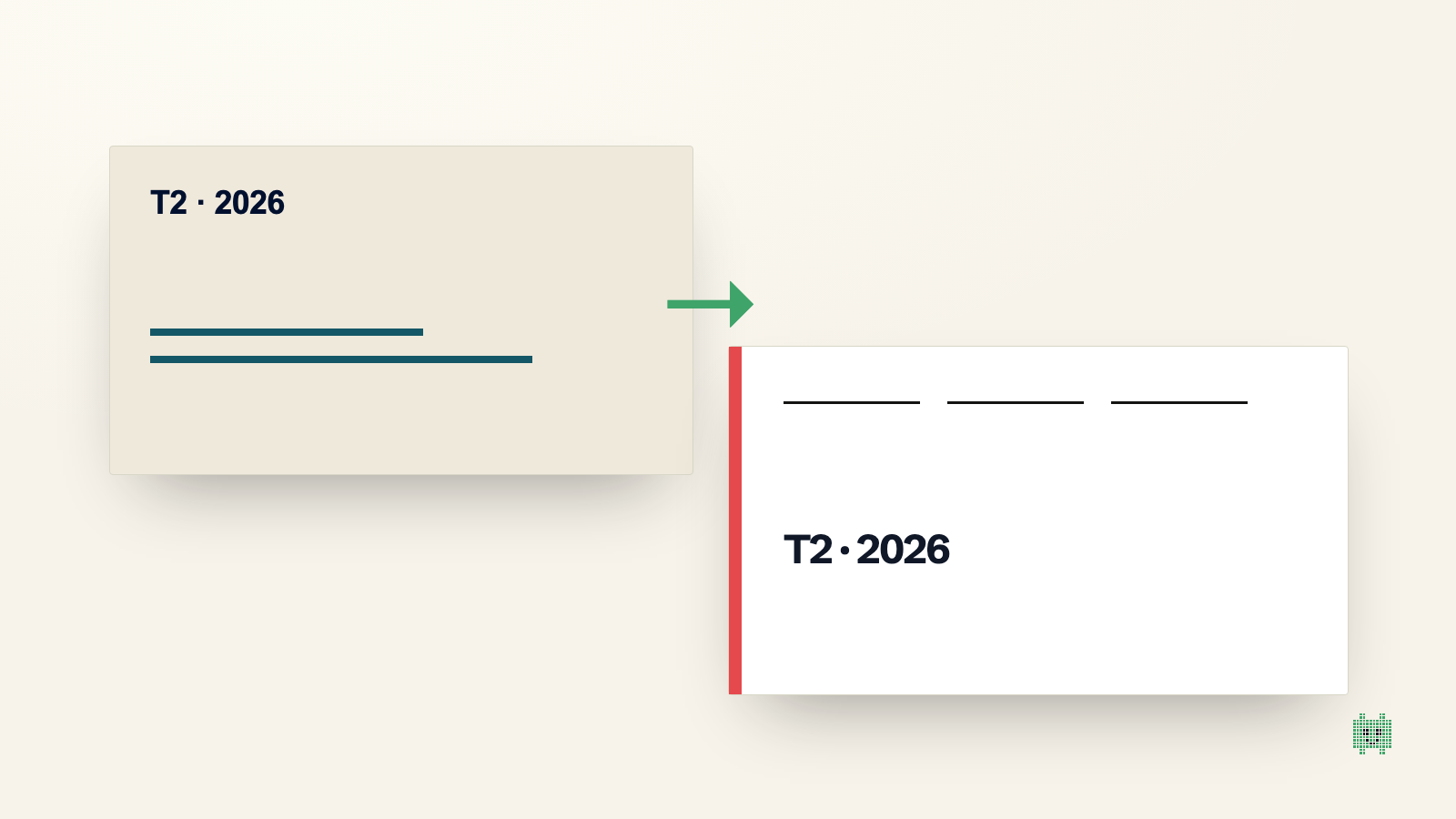
There are three reasons you end up moving an existing presentation into another template. The company's brand changes, and last year's two hundred decks suddenly become "the old version". Two entities merge, and each arrives with its own masters. Or a client, a partner, a jury imposes its template for the final presentation.
In all three cases the reaction is the same: you open both files side by side and start copying. And in all three cases you discover, ten slides in, that this is not a copy-and-paste job.
What breaks when you change template
PowerPoint separates a slide's content from its layout, but the separation is less clean than it looks. Here is what really happens when you paste a slide into a file whose master is different.
Title areas are not the same height. A two-line title in the old template takes three lines in the new one, and the first line of body text slides underneath it.
Fonts are not the same, and above all they are not the same width. A paragraph sized for a narrow typeface overflows its box with a wider one. PowerPoint reacts by shrinking the text automatically, often to the point of being unreadable.
Shape and chart colours are tied to the theme. Depending on how the slide was built, they follow the new theme, or they do not. In a single deck you end up with charts that changed colour and others that kept the old palette.
Images placed by hand sit at absolute coordinates. They do not move, while everything around them has.
Footers, page numbers and logos exist twice: those from the new master, and those that had been pasted directly into the old slide.
What must survive
Before starting, write down what is not allowed to change. The list is shorter than you think, and that is what makes the exercise bearable.
The figures and their sources. The order of the slides and their titles, which carry the argument. The tables, in their exact structure. The charts, in their data. Legal notices and disclaimers. Everything else belongs to the template and is meant to be replaced.
This split is valuable because it turns a fuzzy task, "redo the deck in the new brand", into two clear ones: carry the content over, then recompose it with the parts of the new template.
Three methods, from handmade to tooled
Change the master in the existing file. PowerPoint allows it: you import the new theme and reassign each slide to a layout. It is fast on a well-built deck, the one where every slide really uses the placeholders of its layout. On a real deck, where half the text boxes were drawn by hand, it produces one slide in two to rework.
Rebuild slide by slide. You start from the empty new template and recreate each slide by pasting the content in. It is the safest method for the result and the most expensive in time. It has a hidden benefit: it is the chance to delete what should never have been there.
Transpose with an AI that knows both templates. The most recent approach gives a tool the original deck as the content source and the new template as the design source, and lets it recompose each slide with the layouts and components of the new model. The content is preserved, the layout is the target template's, and the result is a PowerPoint file you can edit.
How to check the result
Whatever the method, the review covers five points, in this order.
Figures first, table by table, because that is where a mistake costs the most. Titles next, to check that none was cut or moved. Then text overflows, by walking through the deck in slideshow mode rather than edit mode, where frames hide the problems. Charts, for colour consistency between slides. Finally density: a slide that looks empty or crowded in the new template must be re-cut, not forced.
The deck you migrate every year
If you find yourself repeating this operation at every brand change, the problem is not the migration but the way the decks are built. Slides that actually use the template's layouts, without hand-drawn boxes, migrate in minutes. It is also what makes an automated transposition reliable.
Paul works on exactly that principle: it imports your template as a kit of layouts and components, reads your old deck as a content source, and composes new slides in the new model. You review, you touch up in the artifact, you export to .pptx. The corporate template page walks through it, and the free trial runs on your own files.