Import your PowerPoint template
Make your existing company template the starting point for presentations created with Paul.

Try your longest text on a content slide
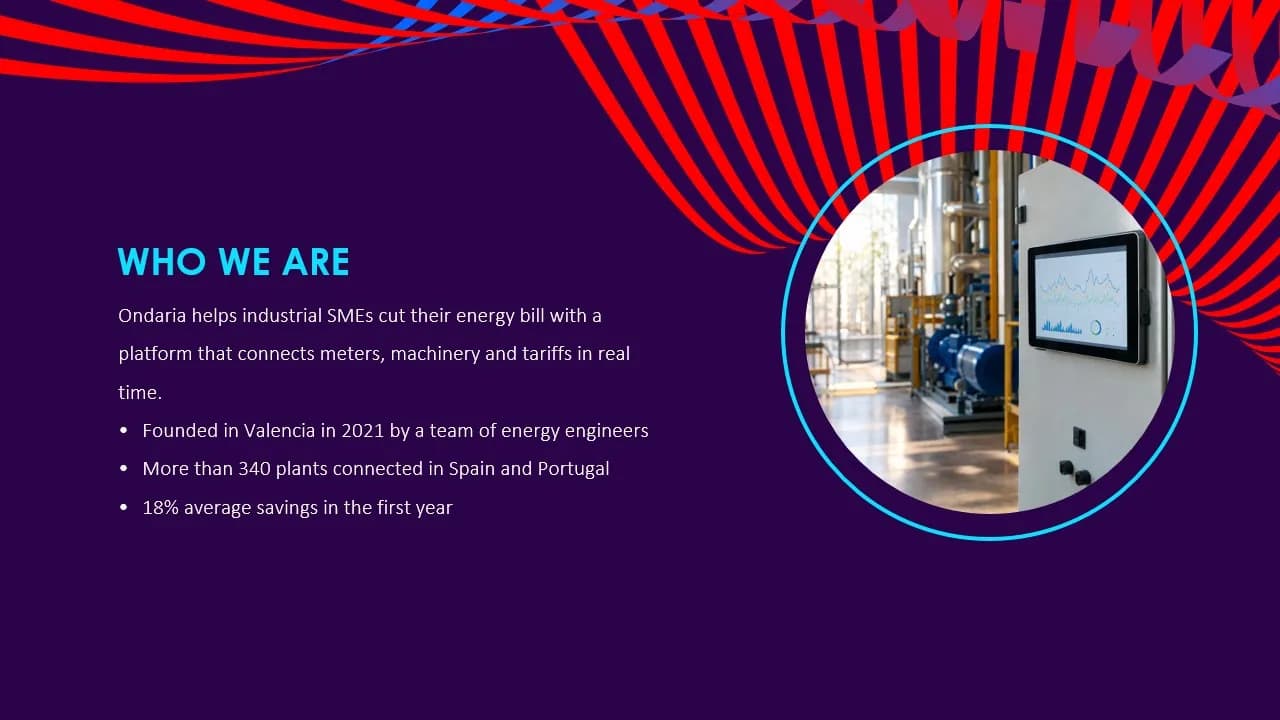
Ondaria’s company profile puts a short introduction and three supporting points on the left. The circular photo on the right has its own frame. This is a good layout to inspect after importing a template with both text and images.
Open the preview, replace the introduction with a paragraph from your brief and follow the last line. It should clear the lower edge of the text box while leaving room between the copy and the photograph.
Start with a file that carries your brand
Add your PowerPoint template to the template library. Choose a representative file with covers, content pages, tables and other useful compositions. Paul examines the available slides and layouts to prepare them for reuse.
Keep the resources from your template
Import retains the file resources needed to work on slides: shapes, images, colours and typography information. Available embedded font files receive dedicated processing. A font that is missing from the file does not automatically become available; check that its licence permits the intended use.
Reuse the template for future presentations
The imported template stays in your library according to your access rights. Select it for a new presentation, then add the brief and source documents. This lets you reuse an existing visual foundation without describing the brand from scratch each time.
Write a brief for a company presentationCheck the result before delivery
Inspect the previews after import and check the important layouts. Complex files may need adjustments. Finish by opening the exported PowerPoint, particularly on the computer where you will present it.
Apply a new template to an existing PowerPoint